
Why n8n’s Public API Rate Limiting is Essential
The n8n Public API enables critical automation tasks: triggering workflows, retrieving executions, or syncing data between tools. Without control, a spike in requests can overwhelm your instance, blocking all teams with 429 Too Many Requests errors. These interruptions disrupt workflows and force ops teams to manually restart processes — wasting time and productivity.
n8n’s built-in rate limiting (available since 2024) solves this by:
- Capping requests per API key without affecting other users on the instance.
- Providing response headers to dynamically adjust request rates.
- Enabling safe retries with idempotency keys to prevent duplicates.
This guide explains how to enable, configure, and leverage these mechanisms for stable workflows.
1. Enable and Configure Rate Limits
Default Limits and Request Counting
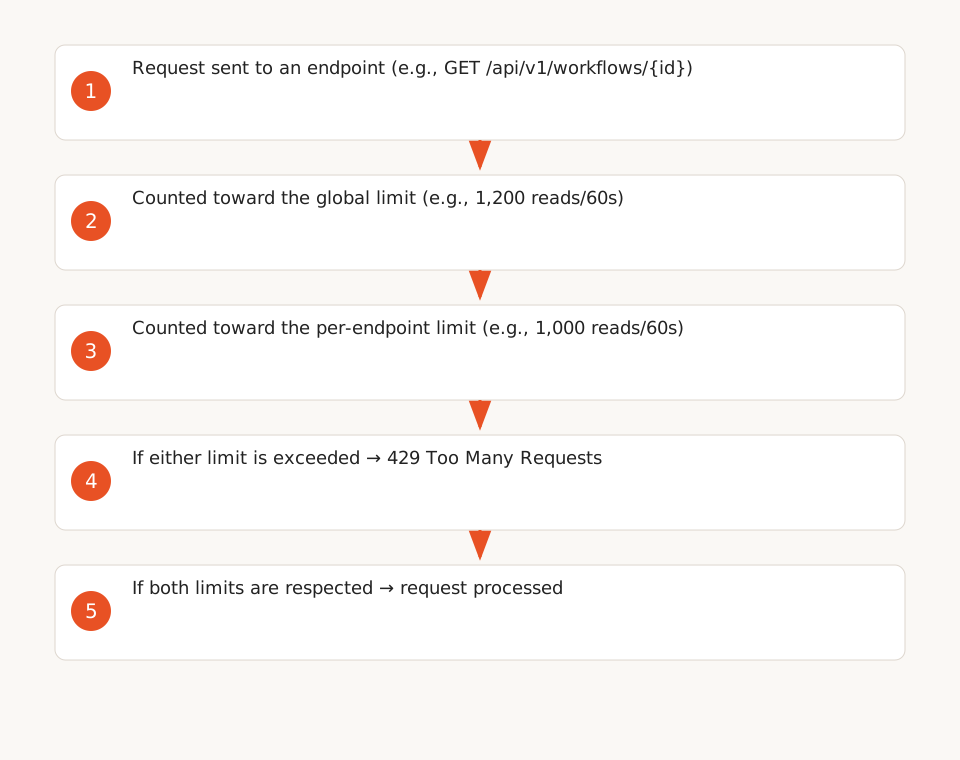
n8n applies two simultaneous levels of limits for each API key (source: F1, F2):
- Global limit: Total requests allowed across all endpoints.
- Per-endpoint limit: Requests allowed for a specific endpoint (e.g.,
GET /api/v1/workflows/{workflowId}).
Requests are categorized into two types, with separate limits:
| Request Type | Global Limit (60s) | Per-Endpoint Limit (60s) |
|---|---|---|
| Read (GET) | 1,200 | 1,000 |
| Write (POST, PUT, PATCH, DELETE) | 600 | 500 |
A request is rejected if it exceeds either of the two limits. For example, 1,001 GET requests to the same endpoint trigger a 429 error, even if the global limit (1,200) isn’t reached.
Methods to Enable Rate Limiting
You can enable or modify limits via three methods (source: F6):
a. Via n8n Settings (UI)- Go to Settings > Policies.
- Enable Enable API key rate limits.
- Configure limits and windows (in seconds) for All endpoints and Individual endpoints.
- Click Enable limits.
Changes apply immediately, without restarting n8n.
b. Via the Public APIUse the PUT /api/v1/settings/rate-limits endpoint to modify limits. Example payload:
{
  "globalReadLimit": 1200,
  "globalReadWindowSeconds": 60,
  "globalWriteLimit": 600,
  "globalWriteWindowSeconds": 60,
  "endpointReadLimit": 1000,
  "endpointReadWindowSeconds": 60,
  "endpointWriteLimit": 500,
  "endpointWriteWindowSeconds": 60
}
Requests to this endpoint also count toward rate limits (source: F6).
c. Via Environment Variables (Self-Hosted)On a self-hosted instance, set the following variables before starting n8n (source: F7):
N8N_PUBLIC_API_RATE_LIMIT_ENABLED=true
N8N_PUBLIC_API_RATE_LIMIT_GLOBAL_READ_LIMIT=1200
N8N_PUBLIC_API_RATE_LIMIT_GLOBAL_READ_WINDOW_SECONDS=60
N8N_PUBLIC_API_RATE_LIMIT_GLOBAL_WRITE_LIMIT=600
N8N_PUBLIC_API_RATE_LIMIT_GLOBAL_WRITE_WINDOW_SECONDS=60
N8N_PUBLIC_API_RATE_LIMIT_ENDPOINT_READ_LIMIT=1000
N8N_PUBLIC_API_RATE_LIMIT_ENDPOINT_READ_WINDOW_SECONDS=60
N8N_PUBLIC_API_RATE_LIMIT_ENDPOINT_WRITE_LIMIT=500
N8N_PUBLIC_API_RATE_LIMIT_ENDPOINT_WRITE_WINDOW_SECONDS=60Warning: Environment variables override n8n settings. To modify a limit managed by an environment variable, you must restart n8n (source: F7).
2. Interpret Rate-Limiting Headers to Avoid 429 Errors
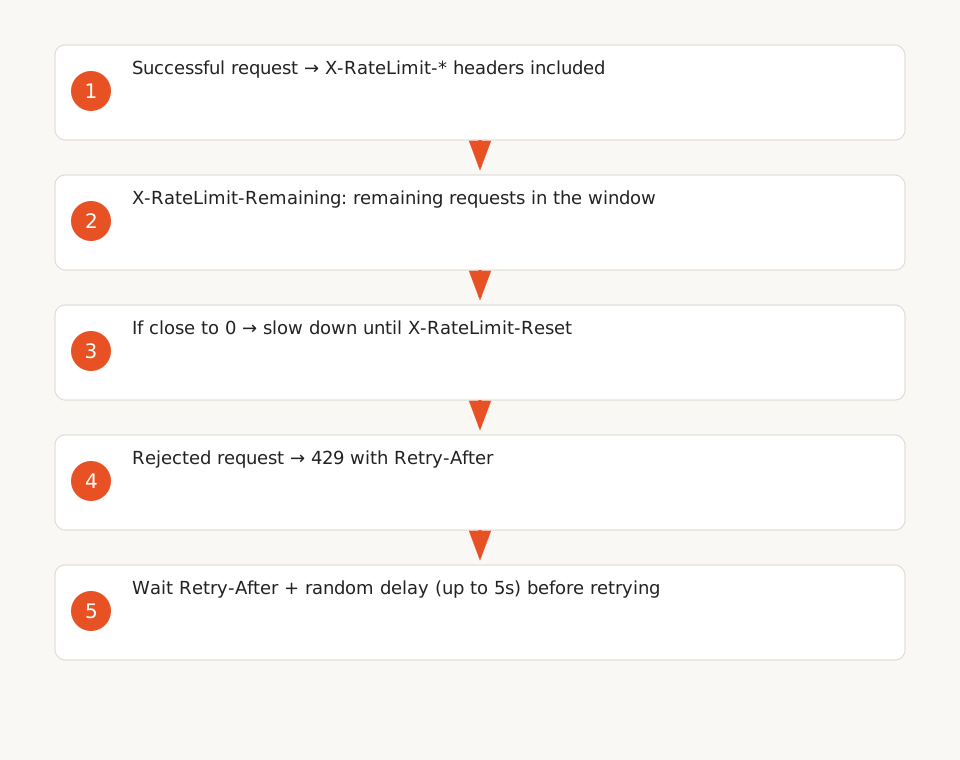
When a request succeeds, n8n includes headers to help you stay under limits (source: F3):
X-RateLimit-Limit: Maximum allowed requests in the window.X-RateLimit-Remaining: Remaining requests in the current window.X-RateLimit-Reset: Unix timestamp (in seconds) for the end of the window.
These headers reflect the most restrictive limit (global or per-endpoint) for the current request. They are absent if rate limiting is disabled or if the request doesn’t use an API key.
What to Do When You Get a 429
A 429 Too Many Requests response includes a Retry-After header indicating how many seconds to wait before retrying (source: F4). Example response:
HTTP/1.1 429 Too Many Requests
Retry-After: 15
Content-Type: application/json

{
  "code": 429,
  "message": "Too Many Requests"
}
To handle a 429 error:
- Wait for the duration specified in
Retry-Afterbefore retrying. A premature retry triggers another 429. - Add a random delay (up to 5 seconds) to avoid multiple clients retrying simultaneously (source: F5).
- Monitor
X-RateLimit-Remaining: If the value is close to 0, slow down until the window resets (X-RateLimit-Reset). - Spread out requests over the entire window to avoid spikes.
3. Use Idempotency Keys for Safe Retries
Idempotency keys ensure that a retried POST request doesn’t create duplicates. They’re critical for endpoints like workflow creation or execution retries (source: F10).
How It Works
- Add an
Idempotency-Keyheader to your POST request. Example:Idempotency-Key: req_abc123. - The key must be unique per request (e.g., a UUID v4) and contain 1–128 visible ASCII characters (no spaces).
- n8n stores the first successful response for this key for 12 hours (source: F11).
- A retry with the same key returns the initial response without re-running the request.
Example Usage
Request to create a workflow with an idempotency key:
curl -X POST 'https://your-instance.n8n.cloud/api/v1/workflows' \
  -H 'accept: application/json' \
  -H 'X-N8N-API-KEY: your_api_key' \
  -H 'Idempotency-Key: workflow_creation_123e4567' \
  -H 'Content-Type: application/json' \
  -d '{"name": "My Workflow", "nodes": [...]}'
If the request fails (e.g., timeout), retry it with the same key: n8n will return the initial response if the first request succeeded, preventing duplicates.
Limitations
- Idempotency keys only apply to POST requests (ignored for GET, PUT, PATCH, DELETE) (source: F12).
- The same key with a different path, query string, or body returns a
422error (source: F12). - After 12 hours, the same key will re-run the request (risk of duplicates).
4. Best Practices for n8n Workflows Calling the Public API
Configure Batching to Stay Under Limits
In an n8n workflow, nodes like HTTP Request or n8n run once per item. Without control, a list of 1,000 items sends 1,000 simultaneous requests — far exceeding the limits (source: F8).
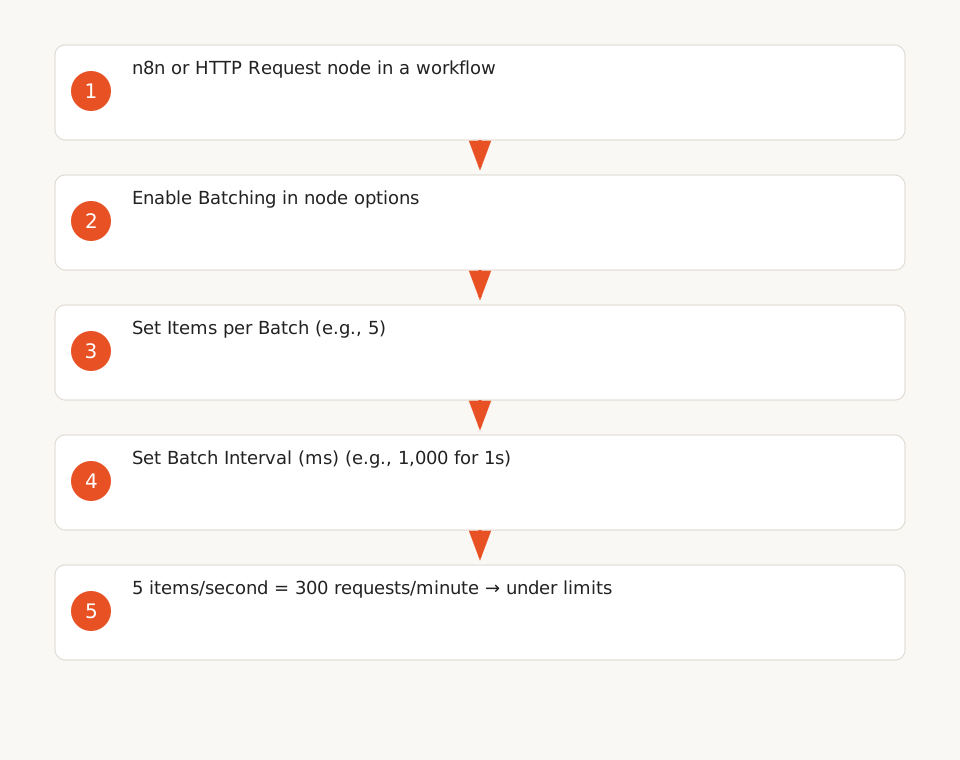
To avoid this, enable batching in the node options:
- Items per Batch: Number of items processed per batch (e.g., 5).
- Batch Interval (ms): Delay between batches (e.g., 1,000 ms for 1 second).
Example: 5 items/second = 300 requests/minute, well under the default limits (1,000 reads/60s or 500 writes/60s).
Why Retry On Fail Doesn’t Resolve 429 Errors
The Retry On Fail option in n8n nodes waits up to 5 seconds between attempts — often within the same rate-limiting window. Additionally, it re-runs the node for each item, which can create duplicates for POST requests (source: F9).
Alternative solution: Use a Wait node to respect Retry-After, or a Loop Over Items node with a custom delay.
Ready-to-Use n8n Template
Here’s a template for an n8n workflow that:
- Fetches data via the Public API with batching.
- Handles 429 errors by respecting
Retry-After. - Uses idempotency keys for POST requests.
Download the template here (link to official documentation).
5. Key Limitations and Constraints
- Environment variables: Changes may require restarting n8n for some limits (e.g., disabling a limit managed by env) (source: F7).
- Missing headers: If rate limiting is disabled or the request doesn’t use an API key,
X-RateLimit-*headers are absent (source: F3). - Idempotency keys: Limited to POST endpoints and valid for 12 hours only (source: F11, F12).
- No rate limiting for external APIs: This guide covers only n8n’s Public API. For third-party APIs called from n8n, use mechanisms like queues or custom delays.
Conclusion: Stability and Productivity
Configuring n8n’s Public API rate limiting prevents 429 errors and keeps workflows running smoothly. Here are the key steps:
- Enable limits via settings, the API, or environment variables.
- Monitor
X-RateLimit-RemainingandRetry-Afterheaders to adjust request rates. - Use idempotency keys for critical POST requests.
- Configure batching in your n8n workflows to stay under limits.
For further reading, explore our guides on: