Why Automate Email Sorting?
An operations manager spends an average of 28% of their week managing emails (source: McKinsey, 2023). Automation reduces this time by targeting repetitive messages: newsletters, delivery notifications, or automated reports. However, without precise rules, the risk is real: accidental deletion of a contract or archiving of an urgent invoice.
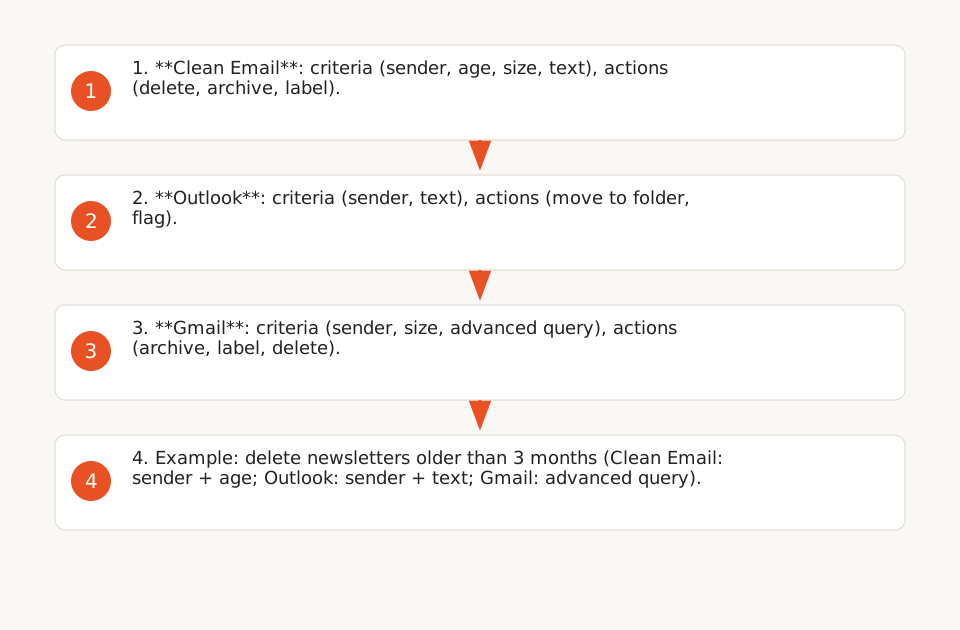
The tools studied here (Clean Email, Outlook, Gmail) share a common approach: combinable criteria (sender, size, age, text) and automated actions (archiving, deletion, labeling). Their differences lie in safeguards and rule granularity. Below, we detail their documented features, followed by a template of rules adaptable to your workflow.
1. Features by Tool: What Each Allows (and Prohibits)
Clean Email: Advanced Rules with Explicit Warnings
Clean Email stands out for its flexible criteria and built-in warnings to avoid errors. Here’s what the Auto Clean feature allows (F1, F2, F3, F4):
- Available Criteria:
- Sender/recipient: name, email address, or domain (e.g.,
@amazon.com). - Status: read/unread, starred/unstarred.
- Age: emails older than a given duration (e.g., 1 month).
- Size: emails larger than a given size (e.g., 1 MB).
- Text: search in the subject or body of the message.
- Folder: application limited to a specific folder (e.g., "Inbox").
- Sender/recipient: name, email address, or domain (e.g.,
- Automated Actions:
- Deletion (
Trash), archiving, marking as read/unread. - Moving to a folder (
Move to Folder) or labeling (Change Labels). - Keeping the newest (
Keep Newest) to avoid deleting important messages.
- Deletion (
- Documented Safeguards:
- The tool explicitly warns that rules apply to all matching messages, including future ones (F3).
- Recommendation: combine at least two criteria (e.g., sender + age) to avoid unintended mass actions (F4).
- Example of error to avoid: a rule deleting all unread emails older than 1 month could delete a pending invoice.
Outlook: Client-Side and Server-Side Rules, with Migration Limits
Outlook offers two versions with distinct features:
- New Version (F5, F6):
- Rule creation via right-click on an email, with the ability to move emails from a sender to a folder.
- For more complex rules: mandatory name, condition, action, and exceptions (e.g., do not apply if the email contains the word "urgent").
- Possible execution on existing messages (F6).
- Classic Version (F7, F8):
- Predefined rule templates (e.g., "Flag messages from someone for follow-up").
- Client-side rules: may stop working after migration to the new version (F8).
- Possible execution on existing messages (F7).
Precautions:
- Client-side rules (classic version) are not automatically migrated to the new version (F8).
- Always test a rule on a sample before applying it to the entire inbox.
Gmail: Filters Based on Advanced Search Queries
Gmail uses filters configurable via the API or web interface (F10, F11, F12). Here are their characteristics:
- Available Criteria:
- Sender, subject, date, size, presence of attachment, or advanced search query (e.g.,
from:amazon.com has:attachment larger:10M). - Criteria can be combined (e.g., sender + size).
- Sender, subject, date, size, presence of attachment, or advanced search query (e.g.,
- Automated Actions:
- Adding/removing labels (e.g., archiving via
removeLabelIds=['INBOX']). - Marking as important/unimportant, or deletion (
addLabelIds=['TRASH']).
- Adding/removing labels (e.g., archiving via
- Limitations:
- Filters only apply to individual messages, not entire threads (F12).
- All criteria must be satisfied to trigger the action (F12).
2. Ready-to-Use Rule Template
Here are examples of rules adaptable to your workflow, with combined criteria to avoid errors. For each tool, we specify the actions and safeguards to enable.
Case 1: Delete Obsolete Newsletters
Problem: Unread newsletters accumulate and clutter the inbox.
| Tool | Criteria | Action | Safeguards |
|---|---|---|---|
| Clean Email |
|
Delete (Trash). |
|
| Outlook |
|
Move to a "Newsletters Archive" folder. |
|
| Gmail |
|
Archive (removeLabelIds=['INBOX']). |
|
Case 2: Archive Delivery Notifications
Problem: Delivery notifications (e.g., Amazon, Colissimo) clutter the inbox after confirmation.
| Tool | Criteria | Action | Safeguards |
|---|---|---|---|
| Clean Email |
|
Archive. |
|
| Outlook |
|
Move to a "Deliveries" folder. |
|
| Gmail |
|
Archive (removeLabelIds=['INBOX']). |
|
Case 3: Manage Large Attachments
Problem: Emails with large attachments (e.g., reports, presentations) saturate the inbox.
| Tool | Criteria | Action | Safeguards |
|---|---|---|---|
| Clean Email |
|
Move to a "Large Attachments" folder. |
|
| Outlook |
|
Move to a "Attachments" folder. |
|
| Gmail |
|
Apply a "Large Attachments" label. |
|
3. Safeguards to Avoid Irreversible Errors
The tools studied emphasize one point: a poorly configured rule can lead to the loss of important messages. Here are the precautions to apply systematically:
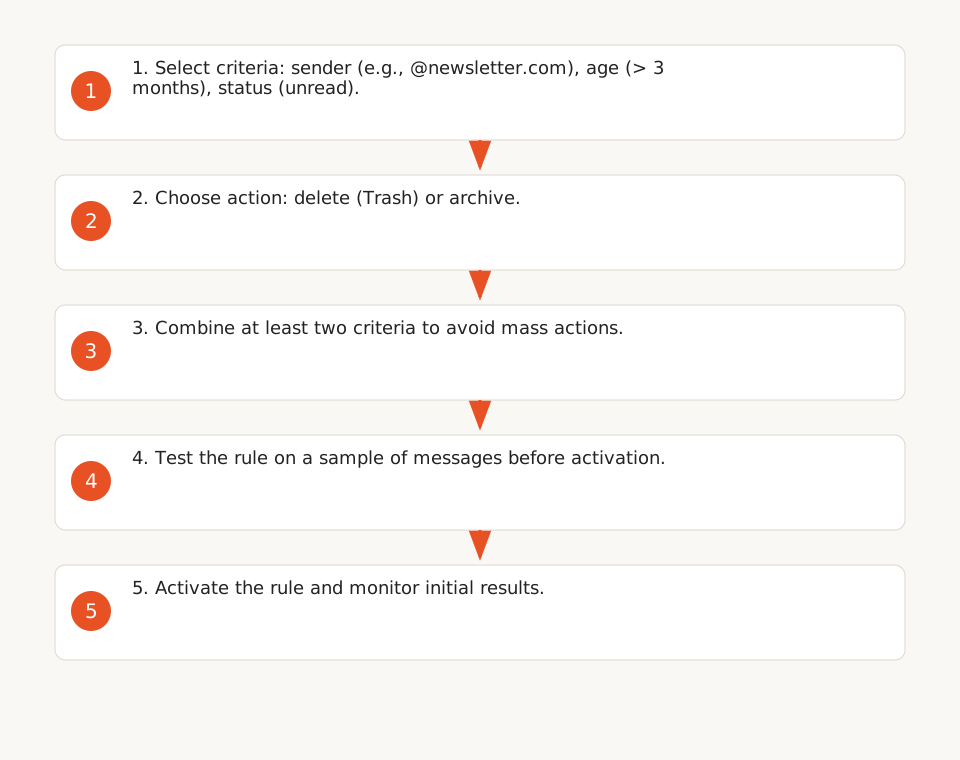
Combine at Least Two Criteria
A rule based on a single criterion (e.g., age > 1 month) can delete or archive critical emails. Examples of safe combinations:
- Sender + age (e.g.,
@newsletter.com+ > 3 months). - Size + status (e.g., > 5 MB + read).
- Text in subject + folder (e.g., "invoice" + "Inbox").
Test Rules on a Sample
Before activating a rule, apply it to a sample of messages to ensure it does not target important emails:
- In Clean Email: first use a
Move to Folderaction instead ofTrash. - In Outlook: run the rule on a test folder.
- In Gmail: apply a temporary label before archiving or deleting.
Enable Exceptions
Exceptions help avoid unintended actions on critical emails:
- In Outlook: add an exception for emails containing keywords like "urgent" or "contract".
- In Gmail: use
negatedQueryto exclude certain terms (e.g.,-urgent).
Check Rules After Migration
If you migrate from one Outlook version to another, client-side rules may stop working (F8). Recreate them in the new version and test them.
4. Documented Limitations and Precautions
The tools studied have limitations that must be known to avoid surprises:
- Clean Email:
- Rules apply to all matching messages, including future ones (F3).
- The tool recommends combining multiple criteria to avoid mass actions (F4).
- Outlook:
- Client-side rules (classic version) are not automatically migrated to the new version (F8).
- Complex rules require manual configuration (F6).
- Gmail:
- Filters only apply to individual messages, not entire threads (F12).
- All criteria must be satisfied to trigger the action (F12).
Finally, none of these solutions offers generative AI features (e.g., contextual classification, automatic summarization). For more advanced needs, you’ll need to integrate a third-party tool like Make.com or Zapier, but with additional costs and complexity.
5. Next Steps: Adapt These Rules to Your Workflow
To implement these rules in your company:
- Identify repetitive email types: newsletters, notifications, automated reports, etc.
- Choose a tool based on your email system (Clean Email for a third-party solution, Outlook or Gmail for native integration).
- Create test rules with combined criteria and non-destructive actions (e.g., moving to a folder).
- Validate results on a sample of messages before permanently activating the rules.
- Document the rules to facilitate maintenance and adaptation by other team members.
If you want to go further in automation, explore tools like Make.com or Zapier, which allow for more complex workflows (e.g., sending Slack alerts for urgent emails). For SMEs, Excel VBA automation can also complement these rules by processing data extracted from emails.