1. Screenity: The ready-to-use tool for annotation without coding
Screenity is a free, open-source Chrome extension that directly addresses the need for real-time annotation. It allows you to:
- Capture a screen (tab, window, or camera) without time limits (F1).
- Draw arrows, boxes, text, or highlight areas during recording, using built-in tools (F1).
- Export the annotated video as MP4, GIF, or WEBM, or save it directly to Google Drive for immediate sharing (F2).
Practical use cases
- Remote training: Annotate a software dashboard (e.g., ERP, CRM) to guide a new employee through key steps, then export the video for future reference.
- Visual feedback: Record a user interface (UI) review with arrows pointing to elements that need correction, then share the file via Google Drive.
- Asynchronous collaboration: Add visual comments to a diagram or wireframe during a Zoom meeting, then send the video link to participants.
Key limitations
- Chrome dependency: Screenity only works on this browser. It cannot annotate desktop applications (e.g., Excel, Photoshop) or external video streams (e.g., RTSP).
- No AI detection: Annotations are manual. To automate arrows for specific objects (e.g., "point to all red buttons"), you’d need to integrate a model like YOLO26 (see Section 3).
- Privacy: Screenity doesn’t collect data, but its use in a business context should be validated by security teams (e.g., GDPR, internal policies).
How to install and use it?
- Install the extension from the Chrome Web Store (official link).
- Click the Screenity icon in the Chrome toolbar and select "Record."
- Choose the source (tab, window, or camera) and enable annotation tools (arrows, text, etc.) from the sidebar.
- Start recording, annotate in real time, then stop the capture.
- Export the video or save it to Google Drive via Screenity’s interface.
2. Browser APIs: Drawing on a video stream with JavaScript
For ops with web development skills, the browser’s Screen Capture and Canvas APIs offer a flexible alternative to Screenity. Here’s how they work:
Technical workflow
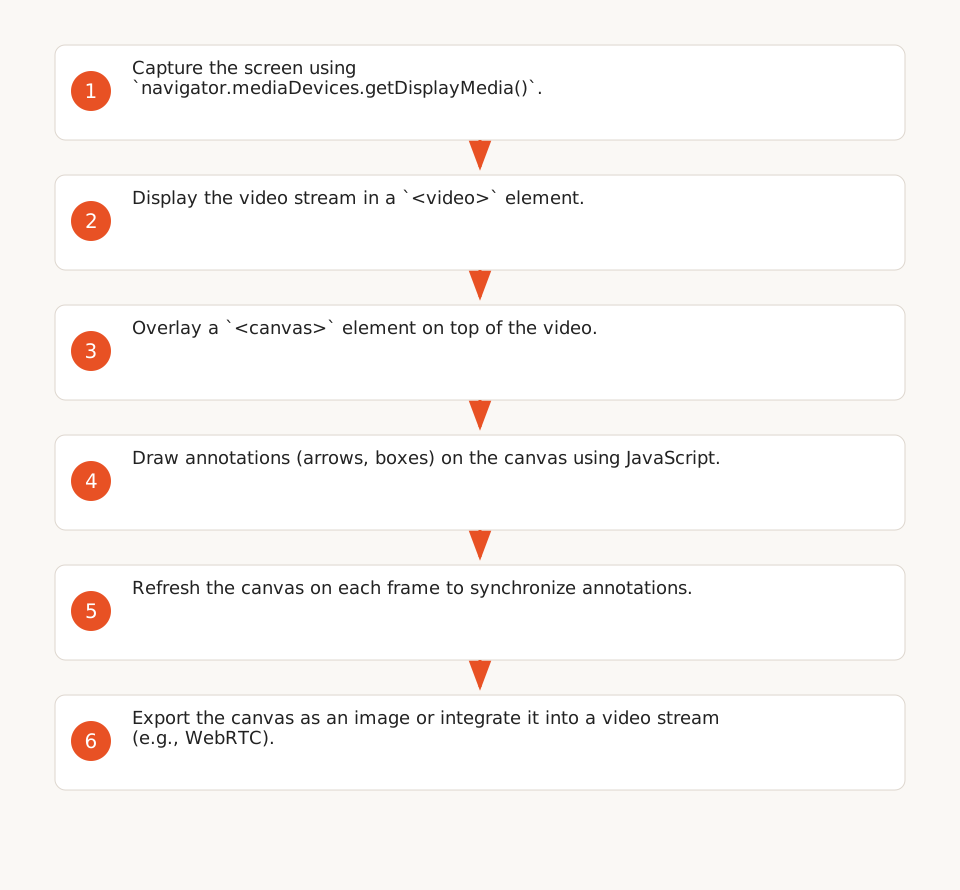
- Capture the screen: The
navigator.mediaDevices.getDisplayMedia()API (F3) lets you select a window or tab to share as aMediaStream. - Draw annotations: The video stream is displayed in a
<canvas>element, where you can draw shapes (arrows, rectangles) or text using JavaScript (F4). - Share the result: The canvas can be saved as an image or integrated into a video stream for real-time sharing (e.g., via WebRTC).
Minimal code example
// 1. Capture the screen
const stream = await navigator.mediaDevices.getDisplayMedia({
  video: true,
  audio: false
});

// 2. Display the stream in a video element
const video = document.getElementById('video');
video.srcObject = stream;

// 3. Draw on a canvas
const canvas = document.getElementById('canvas');
const ctx = canvas.getContext('2d');

// 4. Add a red arrow (example)
function drawArrow() {
  ctx.strokeStyle = 'red';
  ctx.lineWidth = 3;
  ctx.beginPath();
  ctx.moveTo(50, 50);
  ctx.lineTo(150, 50);
  ctx.lineTo(140, 40);
  ctx.moveTo(150, 50);
  ctx.lineTo(140, 60);
  ctx.stroke();
}

// 5. Refresh the canvas with the video
video.addEventListener('play', () => {
  setInterval(() => {
    ctx.drawImage(video, 0, 0, canvas.width, canvas.height);
    drawArrow(); // Redraw the arrow on each frame
  }, 100);
});
Advanced use cases
- Real-time supervision: Integrate the canvas into an internal app to annotate video streams from surveillance cameras (e.g., point to a suspicious package on a logistics screen).
- Synchronous collaboration: Create an interface where multiple users can draw simultaneously on a shared diagram (via WebSocket + Canvas).
- Automation: Combine with a detection model (e.g., YOLO26) to automatically draw arrows on detected objects (see Section 3).
Limitations and constraints
- Technical complexity: Requires advanced JavaScript skills (media stream management, Canvas). Synchronization errors between video and canvas can cause artifacts.
- Performance: Drawing on a canvas in real time can consume significant CPU resources, especially for high-resolution streams.
- Compatibility: The Screen Capture API is supported by Chrome and Firefox, but its support is limited on Safari (Apple restrictions). Always test on target environments.
3. Open-source models: Automating annotations with AI
Computer vision models like YOLO26 (F9) or SAM 2 (F6) can detect or segment objects in images or videos. While they don’t provide direct interactive annotation tools (e.g., arrows), they can be integrated to automate specific tasks. Here’s how to leverage them:
Possible use cases
- Object detection: Use YOLO26 to identify elements in a video (e.g., "red button," "label") and automatically draw boxes around them via the Canvas API (F4).
- Interactive segmentation: SAM 2 can track an object in a video after an initial click (F6). Ideal for annotating video streams (e.g., point to a product on a production line). SAM 2 requires a GPU for smooth real-time performance.
- Dataset annotation: Grounded SAM (F7) combines open-vocabulary detection and segmentation to annotate images from text prompts (e.g., "segment all blue helmets"). Note that the license depends on the components used (e.g., Apache 2.0 for SAM 2, AGPL for some detectors).
Example integration with YOLO26
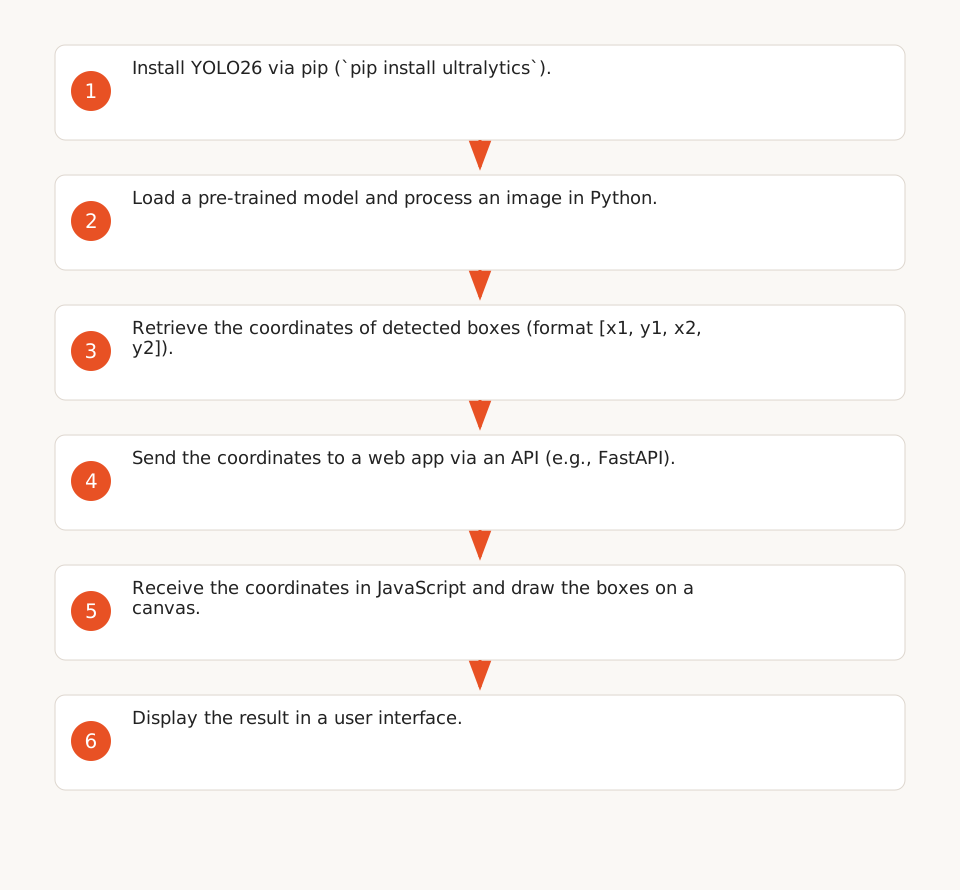
Here’s a typical workflow to draw boxes around objects detected by YOLO26:
- Install Ultralytics YOLO26 via pip:
pip install ultralytics. - Load a pre-trained model and process an image:
from ultralytics import YOLO

# Load the YOLO26 model
model = YOLO("yolo26n.pt")

# Detect objects in an image
results = model("image.jpg")

# Get box coordinates
boxes = results[0].boxes.xyxy  # Format: [x1, y1, x2, y2]
- Send the coordinates to a web app via an API (e.g., FastAPI) and draw the boxes on a canvas using JavaScript (as in Section 2).
Limitations and precautions
- Latency: YOLO models (including YOLO26) typically require a GPU for smooth real-time inference. On CPU, latency can be high and make the tool impractical for production use.
- Licenses: YOLO26 uses an AGPL-3.0 license (F9), which imposes constraints for closed-source commercial products. SAM 2 is under Apache 2.0 (F6), which is more permissive.
- Integration complexity: Combining AI detection and visual annotation requires a technical pipeline (e.g., Python + JavaScript + API). Not suitable for ops without development resources.
- False positives: Models may detect non-existent objects or miss critical elements. Always include human validation.
When to use these models?
- Automating repetitive tasks: Example: Systematically point to "Submit" buttons in a training video.
- Rapid prototyping: Test an AI annotation concept before investing in a custom solution.
- Dataset annotation: Pre-annotate images to speed up training dataset creation.
4. Solution comparison and recommendations
The table below summarizes the strengths and weaknesses of each approach:
| Solution | Advantages | Disadvantages | Technical level required | Ideal use case |
|---|---|---|---|---|
| Screenity |
|
|
None | Training, visual feedback, asynchronous collaboration. |
| Browser APIs |
|
|
Advanced JavaScript | Real-time supervision, synchronous collaboration, automation. |
| Open-source models |
|
|
Python + JS + GPU + API integration | Automated detection, dataset annotation, prototyping. |
Recommendations by profile
- Ops without technical skills: Screenity directly meets the needs of ops without technical skills. It’s the simplest solution for manual annotations.
- Ops with development resources: Combine browser APIs with a model like YOLO26 to automate annotations (e.g., point to specific elements in a video).
- Projects requiring advanced automation: Integrate SAM 2 or Grounded SAM for segmentation or object tracking workflows, but budget for hardware (GPU) and development.
5. Global limitations and best practices
Technical constraints
- Hardware: Detection models (e.g., YOLO26) require a GPU for smooth real-time performance. On CPU, latency can make the tool impractical for production use.
- Browser: Screenity and browser APIs depend on Chrome or Firefox. Desktop applications (e.g., Excel, Photoshop) are not supported.
- Security: Open-source tools (e.g., Screenity) don’t guarantee GDPR compliance. Verify privacy policies and certifications before enterprise deployment.
Best practices
- Test in real conditions: Before deploying Screenity or a custom solution, verify its functionality on user workstations (e.g., screen resolution, browser permissions).
- Document workflows: For tools like Screenity, create a user guide with screenshots to facilitate team adoption.
- Plan a fallback: If AI annotations (e.g., YOLO26) generate too many false positives, switch to manual annotations or a lighter model (e.g., RT-DETRv4).
- Respect licenses: Check open-source model licenses (e.g., AGPL-3.0 for YOLO26) before commercial use (F9).
Paid alternatives (for comparison)
If open-source solutions aren’t sufficient, here are some paid alternatives, with their limitations for the main use case:
- Miro: Allows collaborative annotations, but not in real time on a shared screen (e.g., Zoom screen sharing).
- Zoom Whiteboard: Integrated with Zoom, allows real-time annotation during meetings, but tied to the Zoom ecosystem.
- Microsoft Whiteboard: Similar to Zoom Whiteboard, but for Microsoft Teams users.
6. Conclusion: Which solution to choose?
Screenity is the simplest solution for ops without technical skills. It requires no development, is free, and covers common use cases (training, feedback, collaboration).
If you need more flexibility or automation, browser APIs (Screen Capture + Canvas) offer a powerful alternative, but require advanced JavaScript skills. For advanced workflows (e.g., object detection), open-source models like YOLO26 or SAM 2 can be integrated, but their deployment is more complex and costly (GPU, development).
To go further, explore our guide on AI implementation in businesses, which details how to integrate tools like those presented here into existing workflows.